Library Management
Import, organize, and browse your entire music collection from one place.
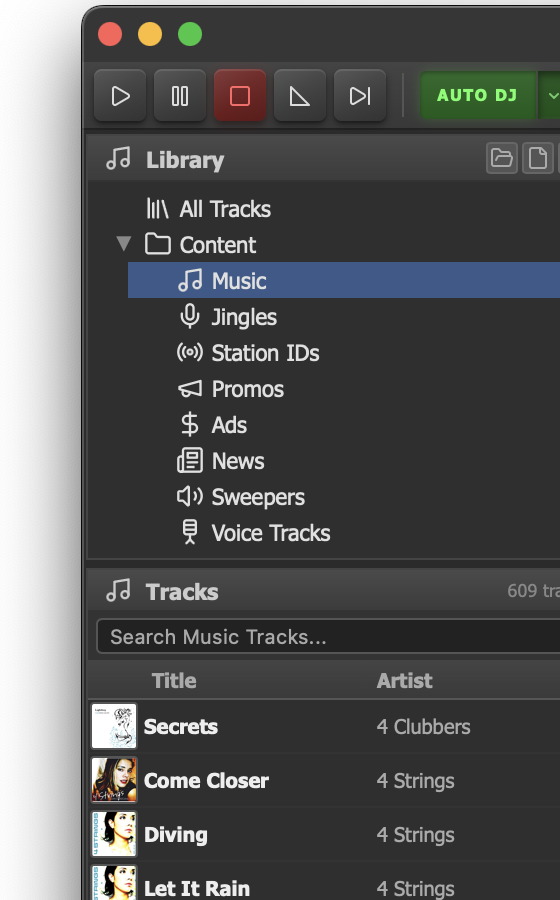
The Library panel with category tree and track list.
Library Panel
The library panel sits on the left side of the main window. It provides a tree view of your audio content, organized into categories for quick navigation.
Category Tree
At the top of the panel is a tree view listing every content category. The default categories are:
| Category | Purpose |
|---|---|
| All Tracks | Shows every track in the library regardless of category |
| Music | Main rotation content — songs for regular airplay |
| Jingles | Short musical elements used between segments |
| Station IDs | Station identification recordings |
| Ads | Advertising spots and sponsorship messages |
| News | News bulletins and spoken-word content |
| Sweepers | Production elements and transitions |
| Voice Tracks | Pre-recorded DJ voice breaks |
Each category displays its track count next to the name. Click any category to filter the track list below it to show only tracks assigned to that category.
Importing Music
Use the folder icon buttons at the top of the library panel to scan directories and bring audio files into JaiCast. The scanner supports a wide range of formats:
Supported Formats
Lossy
MP3, AAC, OGG, WMA, Opus
Lossless
FLAC, WAV, AIFF, APE, WV (WavPack)
Container
M4A (AAC or ALAC)
Scan Process
- Click the scan button and select a folder.
- JaiCast recursively discovers every audio file in that folder.
- The scanner reads embedded metadata — ID3v2 tags, Vorbis comments, APE tags, and MP4/iTunes atoms — using FFmpeg.
- Assign imported tracks to one or more categories.
- Tracks appear in the library immediately and are ready for playback.
Filename Pattern Parsing
When audio files have missing or incomplete tags, JaiCast can extract metadata from the filename itself. Configure a pattern in the Library settings page using placeholders:
{artist} - {title}
A file named Daft Punk - Around The World.mp3 would be parsed as
artist "Daft Punk" and title "Around The World". The pattern is applied only when the
corresponding tag field is empty.
Track List
The main area of the library panel displays the filtered track list. It provides several ways to find and interact with tracks.
Search
The search bar at the top of the track list filters results across title, artist, and album fields simultaneously. Results update as you type.
Columns
The track list displays fixed columns: Art, Title, Artist, Album, Genre, Duration, Bitrate, and Play Count. Additional fields such as BPM and Key are visible in the track editor but are not shown in the list view.
Track Interactions
- Double-click a track to load it onto the active deck.
- Drag and drop tracks to a specific deck or to the queue.
- Right-click to open the context menu for additional operations such as editing metadata, previewing, adding to the queue, detecting BPM/Key, or removing a track.
Album Artwork
JaiCast automatically manages album artwork through a multi-source pipeline:
Artwork Sources
- Embedded art — Extracted from file tags during the initial scan. This is the highest-priority source.
- iTunes Search API — Online lookup using artist and title. Returns high-resolution cover art when available.
- MusicBrainz — Fallback lookup via the MusicBrainz Cover Art Archive when iTunes yields no result.
Features
- Pre-fetching — Artwork for upcoming tracks in the queue is fetched ahead of time so covers are ready before playback starts.
- Coverage tracking — The Library settings page shows how many tracks have artwork and how many are still missing, helping you fill gaps.
- Hover preview — Hovering over a track in the list shows a larger artwork preview without opening the track editor.
Genre and Metadata
Beyond basic tags, JaiCast enriches your library with additional metadata to power features like rotation scheduling and compliance.
MusicBrainz Genre Lookup
Tracks can be enriched with genre data from MusicBrainz. The lookup uses artist and title to find a matching release and pulls standardized genre tags, improving consistency across your library.
Audio Analysis
- BPM detection — Automatic tempo analysis for beat-matching and energy-aware scheduling.
- Key detection — Musical key identification for harmonic mixing.
Analysis results are stored in the library database and displayed in the track editor.
Artist Separation
JaiCast splits compound artist credits (featuring, vs., &, and similar patterns) into individual artist entries. This powers the rotation engine's artist separation rules, which prevent the same artist from appearing too close together in the schedule. See Rotation & Scheduling for details on separation windows.
Categories
Categories define how content is used during automation. The rotation engine references categories when filling clock wheel slots, so correct categorization is essential for smooth automated playback.
Category Roles
| Category | Typical Use |
|---|---|
| Music | Regular rotation. Tracks here are scheduled by the clock wheel's Music slots and follow artist/title separation rules. |
| Jingles | Short musical elements played between songs or segments for branding and flow. |
| Station IDs | Legal or branding identifications, often required at the top of each hour. |
| Ads | Commercial spots scheduled during ad breaks. |
| News | News bulletins and spoken-word segments. |
| Sweepers | Production elements and transitions that maintain station energy. |
| Voice Tracks | Pre-recorded DJ breaks inserted between songs for a live feel. |
Assigning Categories
Categories can be assigned in several ways:
- During the initial folder scan, select a target category for all imported files.
- Open the Track Editor (right-click a track and select Edit Track) to add or remove category assignments for individual tracks.
A single track can belong to multiple categories. This is useful for content that serves dual purposes — a branded musical sting, for instance, might be both a Jingle and a Station ID.