Settings: General
Application-wide behavior, startup options, and power management.
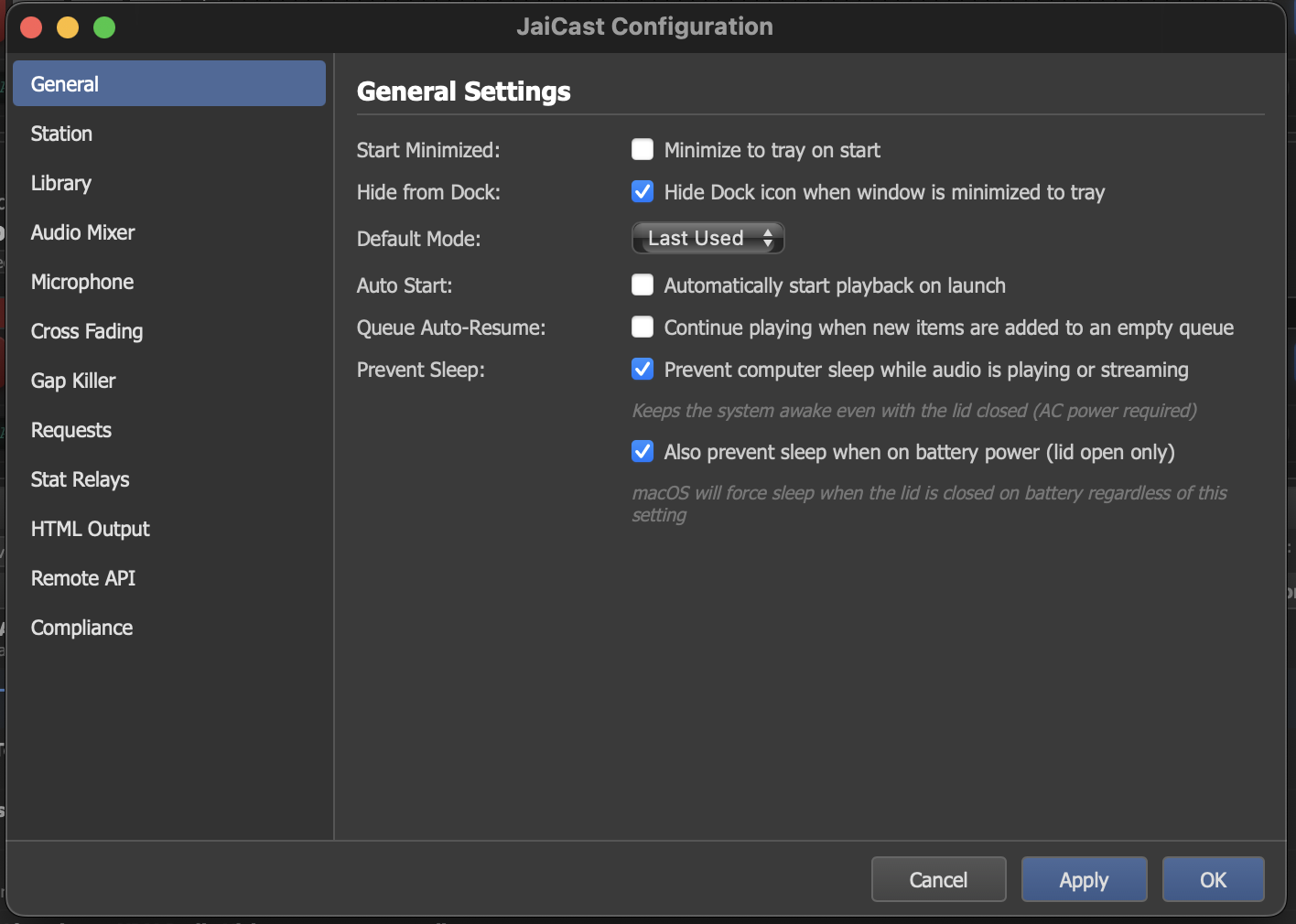
The General settings panel with startup, playback, and power management options.
Startup Behavior
These settings control how JaiCast behaves when the application launches.
| Setting | Description |
|---|---|
| Start Minimized | Launch JaiCast with the main window hidden. The application starts in the system tray (Windows) or menu bar (macOS) and can be opened by clicking its icon. |
| Minimize to Tray on Start | When combined with Start Minimized, the application goes directly to the system tray without appearing in the taskbar or Dock. |
| Hide Dock Icon When Minimized | macOS only. Removes JaiCast from the Dock when the window is minimized to the tray, keeping your Dock clean. The app remains accessible from the menu bar icon. |
Tip
For unattended stations that run 24/7, enable Start Minimized and Minimize to Tray so JaiCast launches silently on system boot and stays out of the way.
Default Mode
The Default Mode setting determines which DJ mode JaiCast activates on launch. By default, this is set to Last Used, which restores whatever mode was active when the application was last closed.
Available modes:
- Last Used — restores the previous session's DJ mode (Auto, Manual, Queue, or AI DJ).
- Auto — always start in AutoDJ mode.
- Manual — always start in Manual mode, requiring the DJ to load and play tracks by hand.
- Queue — always start in Queue mode, playing through the saved queue.
Playback
| Setting | Description |
|---|---|
| Auto Start | Automatically begin playback when JaiCast launches. When enabled, the application loads the first scheduled track and starts playing without waiting for the DJ to press Play. Useful for unattended or headless stations. |
| Queue Auto-Resume | When playback has stopped due to an empty queue, automatically resume playing as soon as new items are added. This prevents dead air in situations where the queue runs dry and is then repopulated. |
Power Management
These settings prevent the operating system from interrupting your broadcast with sleep or power-saving actions.
| Setting | Description |
|---|---|
| Prevent Sleep | Keep the computer awake while JaiCast is playing audio or connected to a streaming server. This prevents the system from going to sleep during an active broadcast, which would interrupt the stream and cause dead air. |
| Battery Power (Lid-Open Only) | When running on battery, only prevent sleep while the laptop lid is open. If the lid is closed, the system is allowed to sleep normally. This option conserves battery when the station is not actively being monitored. |
Important
If you are running JaiCast on a laptop as your primary broadcast machine, always keep it plugged in during a live stream. Battery power is not reliable for continuous broadcasting.