Playback & DJ Modes
Dual-deck audio engine, transport controls, and four ways to run your station.
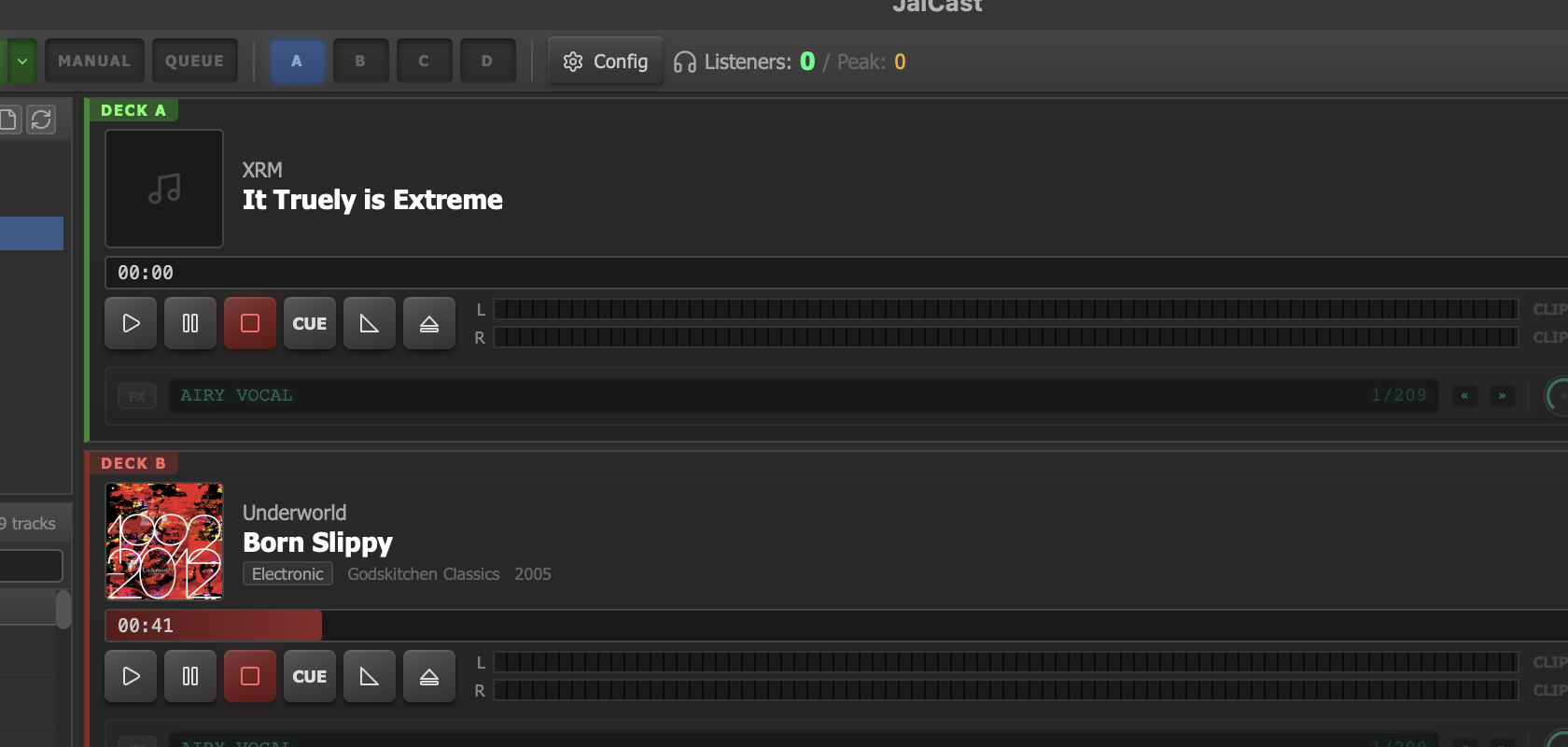
Dual-deck system with Deck A and Deck B.
Dual-Deck System
JaiCast uses a dual-deck architecture for gapless, crossfaded playback. The two decks work in tandem so that one track is always ready to go while another is playing.
Deck A
One of the two playback channels. Displays title, artist, artwork, waveform, and elapsed time.
Deck B
The second playback channel, pre-loaded and decoded. Ready for a seamless crossfade when the time comes.
Deck Display
Each deck shows the following information at a glance:
- Track title and artist
- Artwork thumbnail (extracted from file metadata or matched from the library)
- Waveform overview with playback position indicator
- Elapsed time and remaining time counters
Cue Points
Tracks can have four cue point markers that control how they interact with crossfading and automation:
| Marker | Purpose |
|---|---|
| Cue In | Where playback begins. Skips any dead air or unwanted intro before the music starts. |
| Cue Out | Where the track is considered finished. Triggers the next transition. |
| Intro | Marks the end of the intro section. Useful for talk-over timing and overlap calculation. |
| Outro | Marks the start of the outro section. The crossfade into the next track can begin here. |
Preview Deck
The preview deck lets you audition any track from the library through the CUE bus without affecting on-air output. Right-click a track and select Preview to load it into the preview deck. Audio routes to your configured CUE output device, keeping it off the main program feed.
Transport Controls
The top toolbar provides direct control over playback. These controls operate on the active deck.
| Control | Action |
|---|---|
| Play | Start or resume playback on the current deck. |
| Pause | Pause the current deck. The track holds its position for later resume. |
| Stop | Stop playback and reset to the beginning. The track remains loaded on the deck. |
| Crossfade | Trigger a manual crossfade from the playing deck to the next loaded deck. |
| Skip / Next | Skip to the next track immediately, bypassing any remaining crossfade window. |
DJ Modes
The mode selector in the toolbar determines how tracks are chosen and transitions are handled. Switch modes at any time without interrupting playback.
Auto DJ
Fully automated operation. Auto DJ pulls tracks from the rotation clock, fills the queue, and handles all crossfades without intervention. This is the default mode and the best choice for unattended operation. The rotation engine follows your configured clock wheels, rule sets, and artist separation settings to keep the output varied and compliant.
Manual
Full manual control. You load tracks into decks yourself and trigger every transition. Nothing plays automatically. This mode is designed for live DJing sessions where you want complete authority over track selection and timing.
Queue
Plays through the queue in strict order and stops when the queue is empty. Good for pre-programmed shows, voicetracks, or any situation where you have a specific playlist to run from start to finish. Crossfades still apply between tracks.
AI DJ
Claude AI curates track selection based on mood, musical flow, and deep music knowledge. The AI analyzes your library and picks tracks that work well together, going beyond simple rotation rules. It also generates liner notes for each pick, explaining why a track was chosen.
AI DJ uses a three-tier curation system:
- Tier 1 — MCP Session: Full agentic research with web search and tool use. Highest quality curation with a 300-second timeout.
- Tier 2 — Candidate List: Claude selects from a provided candidate list without MCP tools. Faster, with a 90-second timeout.
- Tier 3 — Rotation Fallback: If both AI tiers fail or time out, the system falls back to standard rotation logic to keep the station running.
Crossfading
Crossfading blends the outgoing and incoming tracks together for a smooth transition. JaiCast handles crossfades automatically between every track pair, with full control over how they behave.
Fade Curves
Choose the shape of the volume transition between tracks:
- Linear — Constant rate of change. Simple and predictable.
- Equal Power — Maintains perceived loudness through the crossfade. The standard choice for most music transitions.
- S-Curve — Slow start and end with a faster middle. Sounds the most natural for most music.
- Custom — User-defined bezier curve for full control over the fade shape.
- None — No fade curve applied. Hard cut between tracks.
Configuration
- Duration: How long the crossfade lasts, in seconds.
- Trigger threshold: How close to the end of a track (or its Cue Out / Outro point) the crossfade begins.
- Intro/outro overlap detection: When cue points are set, the engine uses Intro and Outro markers to calculate the ideal overlap automatically.
- Manual trigger: The Crossfade button in the toolbar lets you start a crossfade at any moment, regardless of the configured trigger point.
Gap Killer
The gap killer removes silence from the beginning and end of tracks to ensure seamless, tight transitions. Dead air at track boundaries is one of the most noticeable problems in automated radio, and the gap killer eliminates it.
How It Works
- Scans the decoded audio for silence at the start and end of each track.
- Trims any silent segments that fall below the configured threshold.
- Works in conjunction with crossfading so that the blend starts on actual audio content, not silence.
Configuration
- Silence threshold: The dB level below which audio is considered silence. Adjustable to handle tracks with very quiet intros or fade-outs that you want to preserve.