Track Editor
View and edit every detail of a track, from metadata to cue points and rotation statistics.
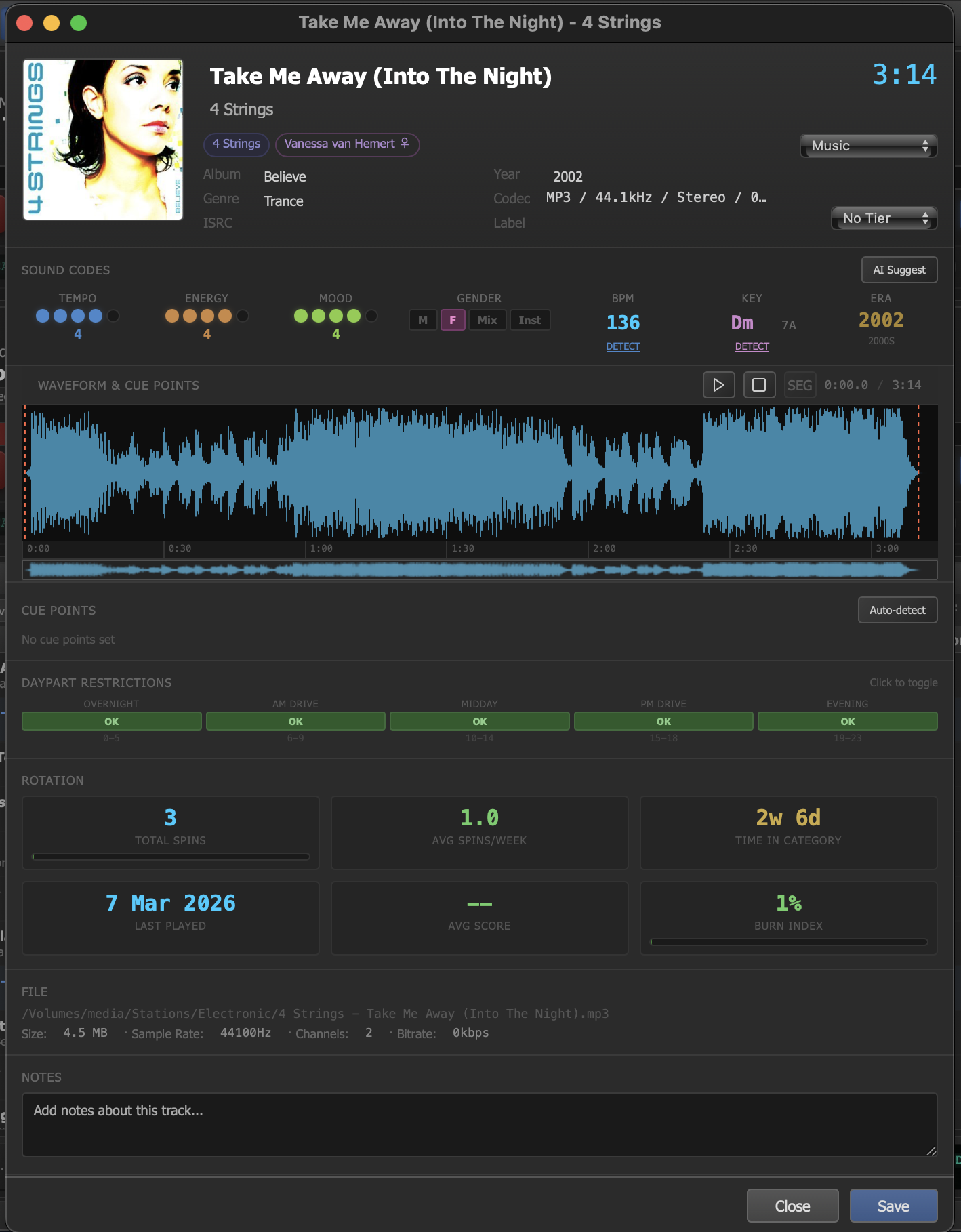
The Track Editor showing metadata fields, waveform display, cue points, and rotation statistics.
Opening the Track Editor
The Track Editor opens as a modal dialog over the main window. To access it:
- Right-click a track anywhere in the library, queue, or history, then select Edit Track from the context menu.
Header
The top of the editor displays the track's essential identity at a glance:
- Artwork — the album cover image, if available. Click to replace it with a different image file.
- Title — the track title, editable inline.
- Artist — the artist name, editable inline.
- Duration — the total runtime of the track (read-only, derived from the audio file).
- Category — the library category this track belongs to. Click to reassign it to a different category.
- Tier — the rotation tier assignment (e.g., Power, Current B, Recurrent, Gold). Tiers control how frequently the track is scheduled in rotation.
Sound Codes
Sound codes are descriptive attributes that characterize the musical properties of a track. They are used by the rotation engine and scheduling rules to build musically coherent playlists.
| Code | Description |
|---|---|
| Tempo | The perceived speed of the track (Slow, Medium, Up-Tempo, Fast). |
| Energy | The overall intensity level (Low, Medium, High, Peak). |
| Mood | The emotional character (Dark, Melancholy, Neutral, Uplifting, Euphoric). |
| Gender | The vocal type (Male, Female, Mixed, Instrumental). |
| BPM | Beats per minute. A numeric value detected by audio analysis or entered manually. |
| Key | The musical key of the track (e.g., C Major, F# Minor). Useful for harmonic mixing. |
| Era | The decade or time period the track belongs to (e.g., 80s, 90s, 2000s, 2010s, 2020s). |
Each sound code is displayed as a color-coded dot next to its label, providing a visual overview of the track's character at a glance. Unassigned codes appear as empty circles.
AI Suggest
Click the AI Suggest button to have JaiCast analyze the track's audio and automatically fill in missing sound codes. The AI analyzes the audio waveform, spectral content, and rhythmic patterns to estimate tempo, energy, mood, and other attributes.
Waveform Display
The waveform section shows a visual representation of the track's audio. It serves both as a preview tool and as the interface for setting segue and cue markers.
- Playback preview — click anywhere on the waveform to start playback from that position. Audio plays through the CUE output so it does not affect the live broadcast.
- SEG marker — the segue point, shown as a vertical line on the waveform. This is where the crossfade to the next track begins. Drag the marker to reposition it, or enter a precise time value in the field below.
- Zoom controls — zoom in and out on the waveform to set markers with greater precision.
Cue Points
Cue points define the precise start and end boundaries for playback and transitions. They allow you to trim silence, skip intros, or tighten up transitions between tracks.
| Cue Point | Purpose |
|---|---|
| Cue In | The point where playback begins. Set this after any leading silence or count-in that should be skipped. |
| Cue Out | The point where the track is considered finished. Any audio after this point is not played. |
| Intro | Marks the end of the instrumental intro. Useful for talk-over timing — DJs know they can talk until this point without stepping on vocals. |
| Outro | Marks the start of the outro or fade. The crossfade engine can use this as an alternate trigger point for starting the next track. |
Each cue point can be set in two ways:
- Manual — click the corresponding field and type a time value, or drag the marker directly on the waveform.
- Auto-detect — click the Auto-detect button to have JaiCast analyze the audio and automatically place cue points based on silence detection, energy transitions, and structural analysis.
Daypart Restrictions
Daypart restrictions control which hours of the day a track is eligible to be scheduled by the rotation engine. This is useful for content that is only appropriate at certain times — for example, excluding explicit tracks from morning drive time, or restricting holiday music to specific dayparts.
The editor displays a row of 24 toggles, one for each hour of the day. Each toggle can be switched on (eligible) or off (restricted). By default, all hours are enabled.
- Enabled (on) — the track can be scheduled during this hour.
- Disabled (off) — the rotation engine will skip this track during this hour and select a different one.
Rotation Statistics
The rotation stats section provides a read-only overview of how the track has been performing in your station's rotation. These numbers are updated automatically as the track is played.
| Statistic | Description |
|---|---|
| Total Spins | The total number of times this track has been played since it was added to the library. |
| Avg Spins/Week | The average number of plays per week over the track's lifetime in the catalog. |
| Time in Catalog | How long ago the track was added to the library, expressed in days or weeks. |
| Last Played | The date and time of the most recent play. Shows "Never" if the track has not been played. |
| Burn Score | A calculated metric indicating how heavily the track has been rotated relative to its tier target. High burn scores suggest the track may benefit from being rested or moved to a lower tier. |
File Information
The file info section displays technical details about the underlying audio file. All fields are read-only.
| Field | Description |
|---|---|
| Path | The full filesystem path to the audio file. |
| Size | File size on disk. |
| Sample Rate | The audio sample rate (e.g., 44100 Hz, 48000 Hz). |
| Channels | The channel configuration (Mono, Stereo). |
| Bitrate | The encoded bitrate for compressed formats (e.g., 320 kbps for MP3). |
Notes
The notes field is a free-form text area where you can store any information relevant to the track. Common uses include:
- DJ notes about the best time to play the track or how it works in a set.
- Content advisories (explicit language, controversial topics).
- Production notes (remix version details, edit notes).
- Liner notes for AI DJ mode, providing context for on-air commentary.
Notes are saved to the library database and persist across sessions. They are visible to all users of the station.