Queue Management
Control what plays next and in what order.
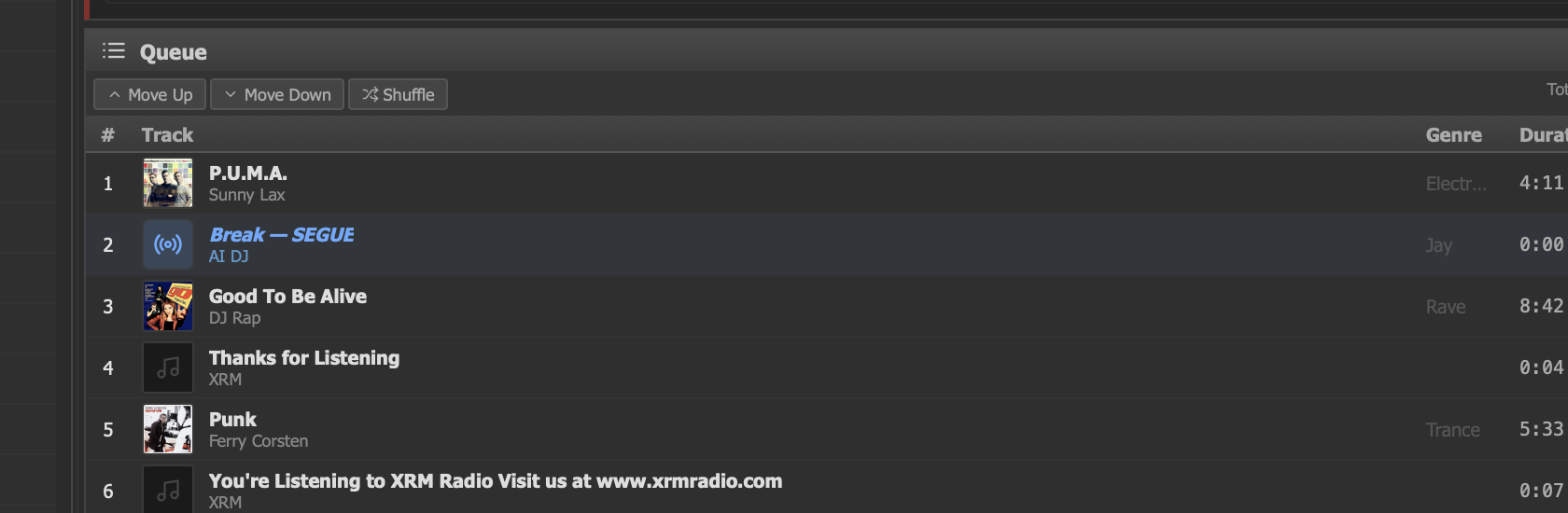
The Queue panel showing upcoming tracks with source and duration.
Queue Panel
The Queue panel is located below the decks in the center of the main window. It provides a real-time view of every track lined up for playback, displayed in the order they will be played.
Each row in the queue displays the following information:
- Track info — title, artist, and album artwork.
- Source — how the track was added:
Manual,AutoDJ,Rotation, orAI DJ. - Duration — the total length of the track.
- Status — indicates whether the track is queued, loading, or about to play.
You can reorder tracks in the queue at any time by dragging and dropping them to a new position. The queue updates immediately and the next track to play always reflects the current order.
Adding Tracks to Queue
There are several ways to add tracks to the queue:
- Drag from Library — select one or more tracks in the Library panel and drag them into the Queue. They will be appended to the end of the queue by default.
- Right-click context menu — right-click any track in the Library and select Add to Queue from the context menu.
- AutoDJ auto-fill — when AutoDJ is active, the queue is automatically populated from your rotation clock. As tracks play and leave the queue, new ones are added to maintain a buffer of upcoming tracks.
- Queue mode — in Queue mode, playback proceeds through the queue in strict sequential order. Tracks must be added manually; nothing is auto-filled.
Queue Operations
The queue supports a full set of management operations, accessible via right-click context menus and keyboard shortcuts.
Reorder
Drag tracks up or down within the queue to change their playback position. You can also use the Move Up and Move Down toolbar buttons in the queue panel header to reposition the selected track.
Remove
Right-click a track and select Remove to take it out of the queue. You can also select a track and press Delete (or Backspace on macOS) to remove it.
Clear
To remove all tracks from the queue at once, click the clear button in the queue panel header. This removes every queued track but does not affect whatever is currently playing on the decks.
Shuffle
Randomize the order of all tracks currently in the queue. This is useful when you have a large set of queued tracks and want to add variety without manually rearranging them.
Queue Behavior by DJ Mode
The queue behaves differently depending on which DJ mode is active. Understanding these differences is key to getting the most out of JaiCast.
| Mode | Queue Behavior |
|---|---|
| Auto DJ | The queue auto-fills from the rotation clock wheel. As each track finishes and crossfades to the next, a new track is pulled from rotation and appended to the queue. Manually added tracks are respected at their position in the queue and will play in order alongside rotation picks. |
| Manual | The queue is purely manual. No tracks are added automatically. You load tracks onto decks and trigger playback yourself. The queue serves as a preparation list — you decide when and what to play. |
| Queue | Playback proceeds through the queue in strict sequential order. When the last track finishes, playback stops. No auto-fill occurs. This mode is ideal for pre-programmed playlists or scheduled blocks. |
| AI DJ | Claude curates music slot picks based on station context, mood, and listening patterns. Non-music slots (jingles, IDs, sweepers) auto-fill from rotation as usual. The result is a human-like programming flow with intelligent music selection. |
Queue Auto-Resume
By default, when the queue is empty and playback has stopped, adding a new track to the queue does not automatically start playback. You would need to manually trigger the next track.
The Auto-Resume setting changes this behavior. When enabled, adding a track to an empty queue will automatically begin playback, ensuring continuous audio without manual intervention.
To configure this option:
- Open Settings (click the gear icon or press Ctrl + , on Windows, Cmd + , on macOS).
- Go to the General settings page.
- Find the Auto-Resume option and toggle it on or off.
This is particularly useful for stations that receive listener requests or have external systems adding tracks via the Remote API. With auto-resume enabled, a request added to an empty queue will immediately go to air.