Rotation & Scheduling
Define how AutoDJ selects and sequences tracks using format clocks, rule sets, and separation logic.
Format Clock Overview
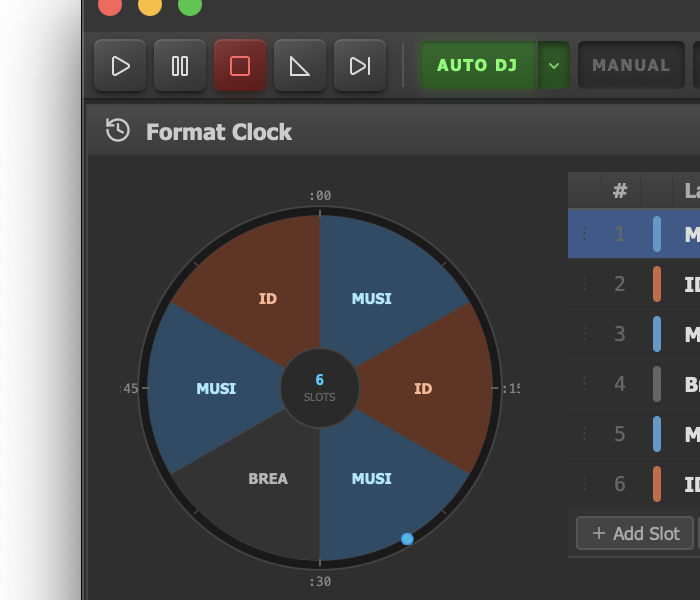
The format clock wheel showing slot distribution.
The format clock is the central scheduling tool in JaiCast. It defines the repeating pattern that AutoDJ follows when selecting tracks for playback. Access the format clock editor from the Rotation tab in the main window.
The editor displays a visual clock wheel that shows the distribution of slots across one complete rotation cycle. Each slot in the wheel represents one track selection, and the clock repeats continuously as long as AutoDJ is running.
Visual Clock Wheel
A pie chart visualization showing how your rotation is divided across slot types. Quickly see the balance between music, jingles, IDs, and other content.
Slot Configuration
Each slot has a label, a source (where to pull tracks from), and an optional rule set that controls separation behavior.
Repeating Pattern
Once all slots have played, the clock restarts from the beginning. This creates a consistent, predictable station format.
Clock Slots
Each slot in the format clock represents one position in the rotation cycle. When AutoDJ reaches a slot, it selects a track according to the slot's configured source and applies any associated rule set to enforce separation constraints.
Slots play in strict sequential order. After the last slot in the clock, the cycle repeats from the first slot.
Slot Sources
Each slot draws its content from one of four source types:
| Source | Description |
|---|---|
| Category | Selects a track from a library category such as Music, Jingles, IDs, or any custom category you have created. This is the most common source type. |
| File | Plays a specific file every time the slot comes up. Useful for station IDs, legal notices, or other fixed content that must play at a specific position in the rotation. |
| Folder | Selects a random track from a folder on disk. The folder does not need to be imported into the library. Useful for drop-in content that changes frequently. |
| URL | Streams content from a remote URL. Can be used for syndicated content, network feeds, or external audio sources. |
Editing Slots
Click any slot in the clock wheel or the slot list to open its editor. From there you can set the slot label, choose the source type, and assign a rule set. The visual pie chart updates in real time as you add, remove, or reorder slots.
Rule Sets
Rule sets are named bundles of separation rules that control how AutoDJ avoids repetition within a slot. Each slot can reference a rule set by name, and multiple slots can share the same rule set.
JaiCast ships with two default rule sets:
| Rule Set | Artist Separation | Title Separation | Use Case |
|---|---|---|---|
| Music | 4 slots | 8 slots | General music rotation. Ensures variety by keeping the same artist at least 4 slots apart and the same title at least 8 slots apart. |
| IDs | 0 slots | 2 slots | Station IDs and short-form content where repetition is acceptable but you still want some basic title spacing. |
You can create, rename, and delete rule sets from the rule set editor in the Rotation tab. To assign a rule set to a slot, select it from the dropdown in the slot editor.
Separation Rules
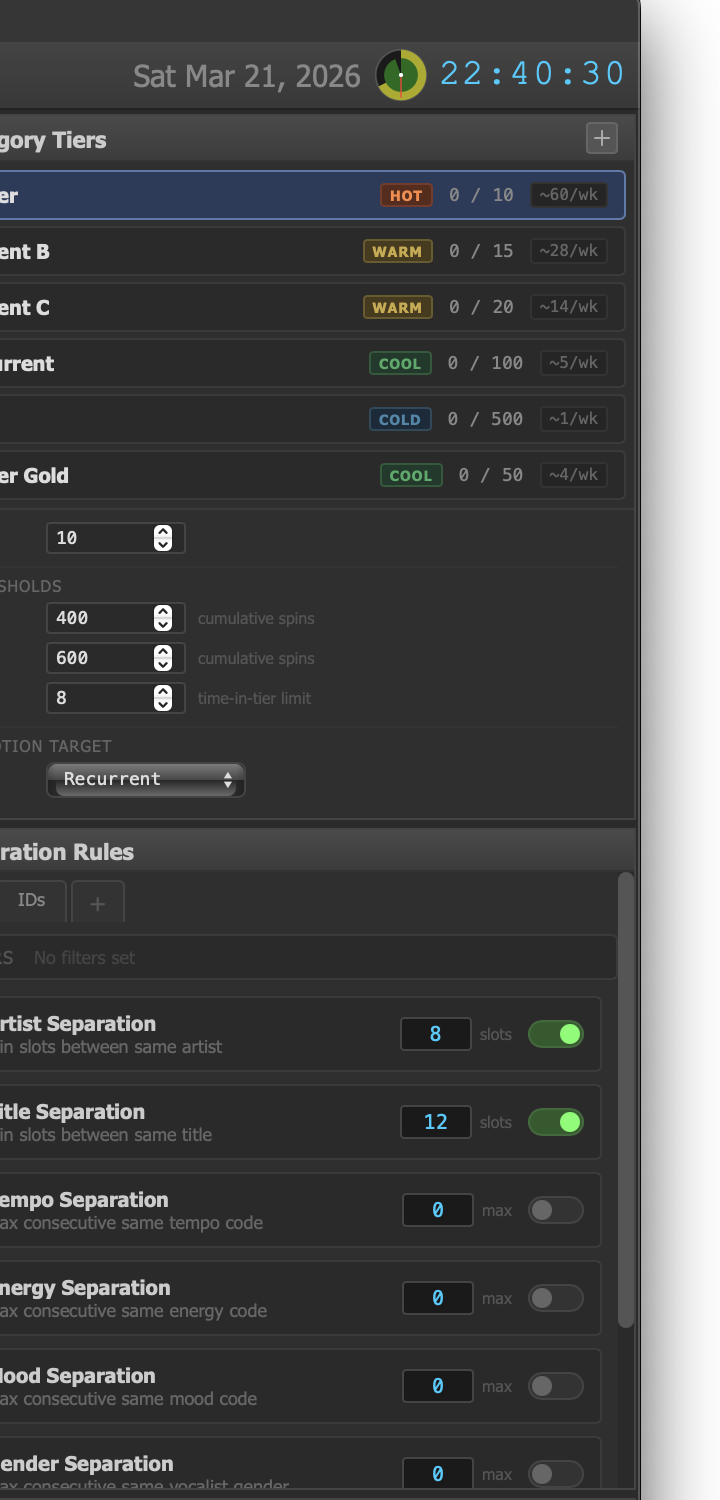
Category Tiers and Separation Rules configuration.
Separation rules define the minimum number of slots that must elapse before the same attribute can repeat. These rules are configured within each rule set and appear in the right panel of the Rotation tab.
| Rule | Description |
|---|---|
| Artist Separation | Minimum number of slots between tracks by the same artist. Compound credits (feat., &, vs.) are split into individual artists for matching. Artists with different spellings are unified via MusicBrainz IDs when available. |
| Title Separation | Minimum number of slots between tracks with the same title. Prevents the same song from appearing too close together even if it appears in multiple categories. |
| Tempo | Maximum number of consecutive tracks with the same tempo classification. Encourages tempo variation across the rotation. |
| Energy | Maximum number of consecutive tracks with the same energy level. Avoids monotonous stretches of all high-energy or all low-energy content. |
| Mood | Maximum number of consecutive tracks with the same mood classification. Keeps the emotional tone of the station dynamic and engaging. |
| Gender | Maximum number of consecutive tracks with the same vocalist gender. Prevents long runs of the same vocal type. |
| Era | Maximum number of consecutive tracks from the same era or decade. Prevents clustering of tracks from the same time period. |
| Genre | Maximum number of consecutive tracks with the same genre. Ensures genre diversity across the rotation for multi-format stations. |
Together, these separation rules prevent repetitive-sounding rotations and give your station a varied, curated feel even in fully automated operation.
Category Tiers
Category tiers control how frequently individual tracks appear in the rotation. When a slot source is a category, the tier assignment of each track within that category determines its likelihood of being selected. Tiers are managed in the right panel of the Rotation tab.
| Tier | Rotation Frequency | Typical Use |
|---|---|---|
| Power | Highest | Your most important current tracks. These are the core of your station sound and play most frequently. |
| Current B | High | Strong current tracks that complement the Power rotation but play slightly less often. |
| Current C | Moderate | Supporting current tracks. They add variety without dominating airtime. |
| Recurrent | Lower | Tracks that have moved out of current rotation but remain familiar and well-received. Still played regularly but less than currents. |
| Gold | Low | Catalog tracks and library staples. Reliable tracks that play at a reduced frequency to maintain freshness. |
| Power Gold | Lowest | Classic, proven favorites from the gold catalog that receive slightly more exposure than standard Gold tracks. |
New tracks added to the library can be assigned to a tier to control their initial exposure level. As tracks age or their performance changes, you can move them between tiers to adjust their rotation frequency.
Rotation Preview
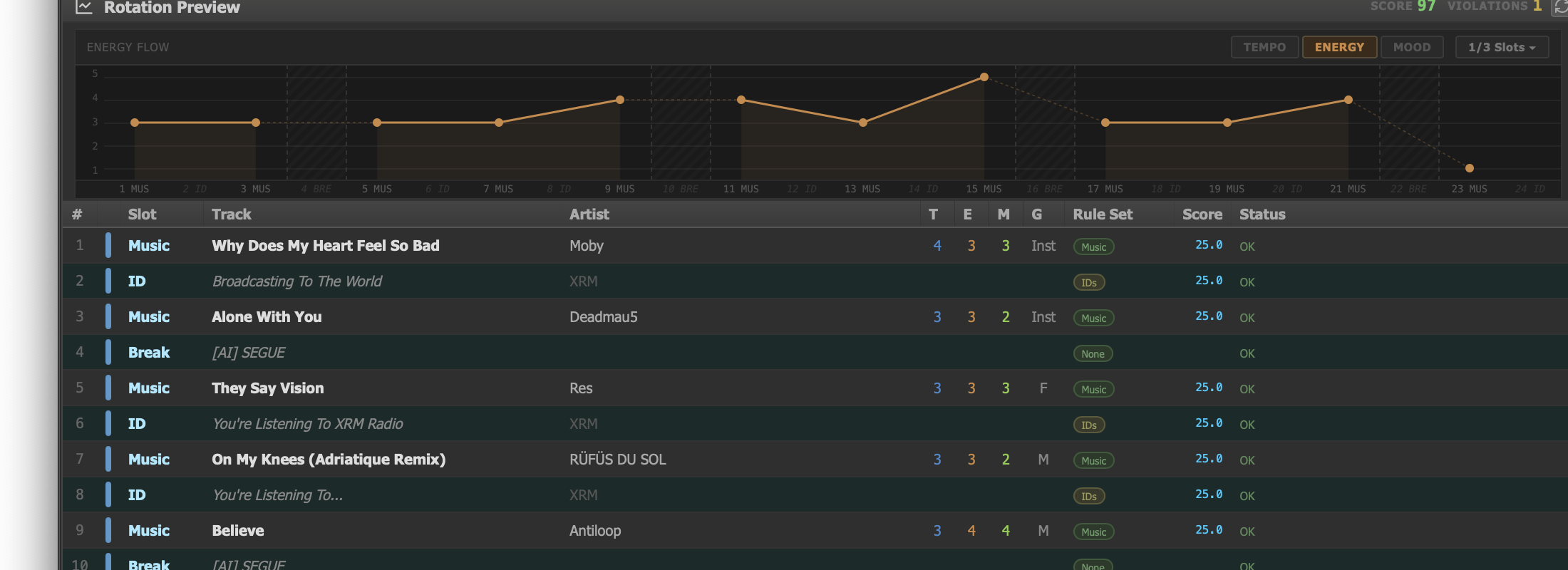
Preview table showing what AutoDJ would select for each slot.
The rotation preview lets you see exactly what AutoDJ would select for each slot in the format clock before going live. The preview table appears below the clock editor in the Rotation tab.
Preview Table
The preview generates a simulated run through your format clock and displays the results in a table with the following columns:
| Column | Description |
|---|---|
| Slot | The slot label from the format clock. |
| Track | The title of the track selected for this slot. |
| Artist | The artist of the selected track. |
| Separation Metrics | Displays the actual separation values achieved for this pick, showing whether all constraints were satisfied. |
| Rule Set | Which rule set was applied to this slot's selection. |
| Status | Whether the pick passed all rules, or if any constraints had to be relaxed. |
Separation Graph
Below the preview table, a graph plots separation values over time across the simulated rotation. This visualization makes it easy to spot patterns or problem areas, such as clusters where artist separation dips below your configured threshold.
Compliance Integration
Broadcast compliance rules can restrict which tracks the rotation engine is allowed to select. When a compliance profile is active, the rotation engine checks every candidate track against the profile's rules before including it in the rotation.
JaiCast supports several jurisdiction-specific compliance profiles:
- DMCA — United States. Limits artist and album repetition within specific time windows to comply with digital performance royalty rules.
- CRTC — Canada. Enforces Canadian content (CanCon) quotas and French-language requirements where applicable.
- ARCOM — France. Requires minimum percentages of French-language music and limits rotation of individual titles.
- GVL — Germany. Enforces neighbouring rights regulations and separation limits for sound recordings.
- CBAA — Australia. Community broadcasting standards including local content requirements.
Compliance is shown as a toggle in the rotation panel. When enabled, the active profile's rules are applied on top of your separation rules, and any tracks that would violate compliance are excluded from selection.