SFX Soundboard
Trigger sound effects, jingles, and stingers instantly during your broadcast.
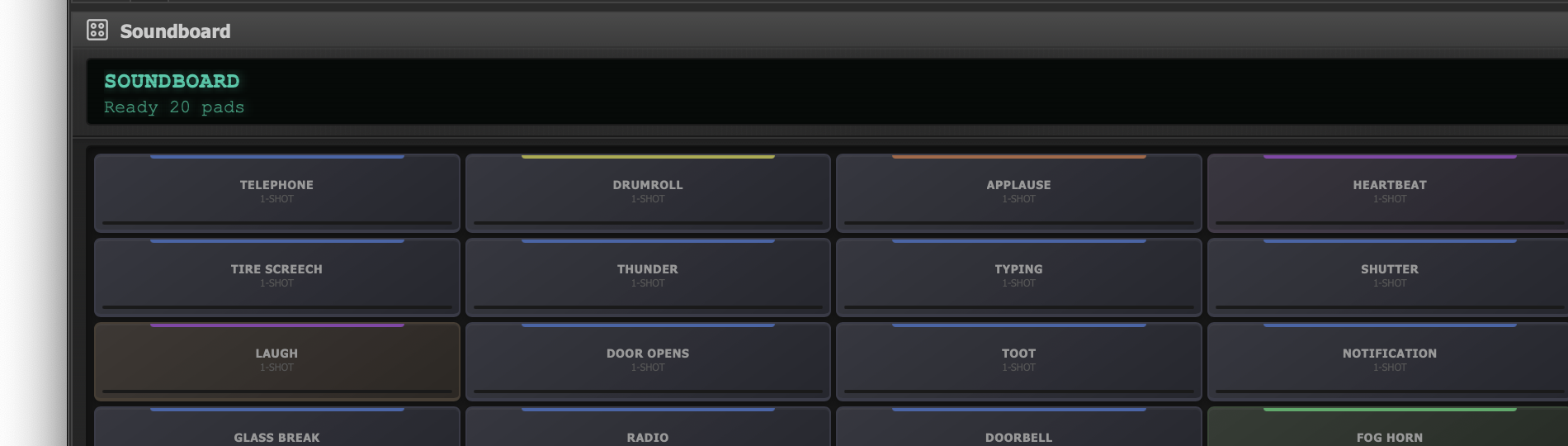
Three banks of 20 SFX pads with color-coded categories.
Overview
The SFX Soundboard provides a grid of trigger pads for playing short audio clips on demand. Whether you need a jingle between songs, a stinger to punctuate a talk break, or ambient sound effects for a live show, the soundboard puts them all one click away.
- 3 banks of 20 pads each, giving you up to 60 loaded sounds at any time.
- Instant triggering — click a pad and the sound plays immediately, mixed into your broadcast output.
- Per-pad configuration — each pad has its own file, name, play mode, gain, and color.
- Polyphony limiting — up to 8 sounds can play simultaneously to prevent audio overload.
Banks
Pads are organized into three banks. Only one bank is visible at a time. Use the Previous and Next buttons (or the bank number indicators) to switch between them.
A common organizational strategy is to dedicate each bank to a different type of content:
Bank 1 — Jingles
Station IDs, sweepers, and branded audio elements that play between songs.
Bank 2 — Stingers
Short impact sounds, transitions, and musical accents for talk breaks.
Bank 3 — Effects
Applause, horns, comedy sounds, ambient backgrounds, and other utility clips.
Loading Sounds
There are two ways to assign an audio file to a pad:
Drag and Drop
Drag any audio file from your file manager (Finder, Explorer) or from the JaiCast library directly onto an empty pad. The pad will load the file and display its name.
Right-Click Configuration
- Right-click any pad to open its configuration dialog.
- Click Browse to select an audio file.
- Set the pad name, category, play mode, gain, and color.
- Click Save to apply your changes.
To clear a pad, right-click it and select Clear Pad. The pad returns to its empty state.
Per-Pad Configuration
Each pad can be individually configured with the following properties:
| Property | Description |
|---|---|
| File | The audio file assigned to this pad. Supports all formats recognized by JaiCast (MP3, AAC, FLAC, WAV, OGG, OPUS). |
| Name | A short label displayed on the pad face. Defaults to the file name if not set manually. |
| Category | An optional organizational tag (e.g., "Jingles", "Stingers", "Effects"). |
| Play Mode | Controls how the pad behaves when triggered. See the Play Modes section below. |
| Gain | Per-pad volume adjustment in decibels. Use this to level-match pads so they play at consistent volumes regardless of the source file levels. |
| Color | A color tint applied to the pad for visual identification. Useful for quickly spotting specific sounds in a full bank. |
Play Modes
The play mode determines what happens when you click a pad that is already playing, or how the sound behaves after being triggered.
| Mode | Behavior |
|---|---|
| One-Shot | Plays the sound once from start to finish. Clicking the pad again while it is playing restarts the sound from the beginning. |
| Hold | Plays only while the pad is held down (mouse button pressed). Releasing the pad stops playback immediately. |
| Loop | Plays the sound in a continuous loop until stopped. Click again to stop. Good for background textures and ambient fills. |
Keyboard Shortcuts
The soundboard can be triggered entirely from the keyboard for fast, hands-free operation during a live show.
| Shortcut | Action |
|---|---|
| F1 – F10 | Trigger pads 1–10 in the current bank. |
| Shift+F1 – Shift+F10 | Trigger pads 11–20 in the current bank. |
| Escape | Stop all currently playing sounds across all banks. |
| Tab / Shift+Tab | Switch to the next / previous bank. |
Polyphony Limiting
The soundboard limits the number of sounds that can play at the same time. The default polyphony limit is 8 simultaneous voices. This prevents audio clutter and keeps the mix clean when triggering multiple pads in quick succession.
When the polyphony limit is reached, triggering a new pad will stop the oldest currently playing sound to make room for the new one. This is a "steal oldest" strategy that ensures your most recent trigger always plays.
Workflow Tips
- Color-code by purpose — assign red to stingers, blue to jingles, and green to ambient effects so you can find what you need at a glance during a live show.
- Level-match your pads — use the per-pad gain control to ensure all your sounds play at a consistent volume. Nothing disrupts a broadcast like a sound effect that is 10 dB louder than everything else.
- Keep short clips short — the soundboard is designed for clips under 60 seconds. For longer audio elements, consider loading them onto a deck or into the queue instead.
- Organize by show — if you run multiple shows, you can set up each bank for a different show's needs and switch banks between segments.